Developer Mode
Developer Mode is a workspace-level setting that lets you copy resource IDs directly from the Copera interface. Most Public API calls need IDs — a boardId, tableId, columnId, channelId, and so on — and Developer Mode surfaces contextual "Copy ID" actions throughout the app so you can grab them without inspecting network traffic or using browser dev tools.
What it's for
Developer Mode streamlines integration development by giving you fast access to resource identifiers that are otherwise hidden in the standard interface. It is specifically for copying IDs — nothing else.
Enable Developer Mode
Open the workspace menu in the top-left corner and go to Workspace Settings.
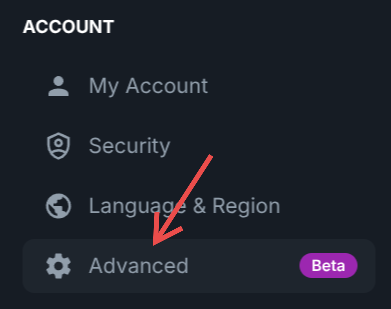
Navigate to Account → Advanced.
Toggle Developer Mode on. Additional "Copy ID" actions appear across the interface.
The full path is Workspace Settings → Account → Advanced → Developer Mode.
Where you can copy IDs
With Developer Mode active, right-click (or use the three-dot menu) on these resources to copy their IDs:
- Channels — right-click the channel in the left sidebar.
- Boards — right-click the board in the left sidebar.
- Tables — right-click the table in the left sidebar, or use the three-dot menu inside a table.
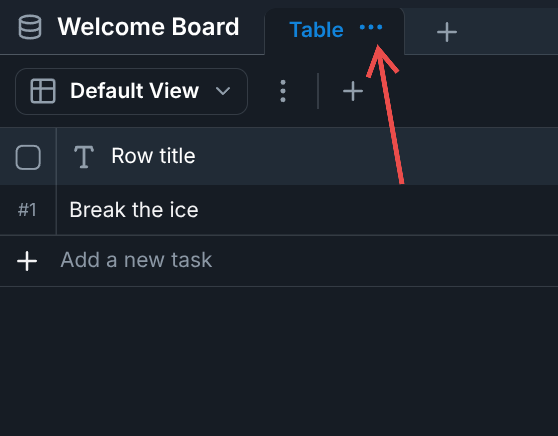
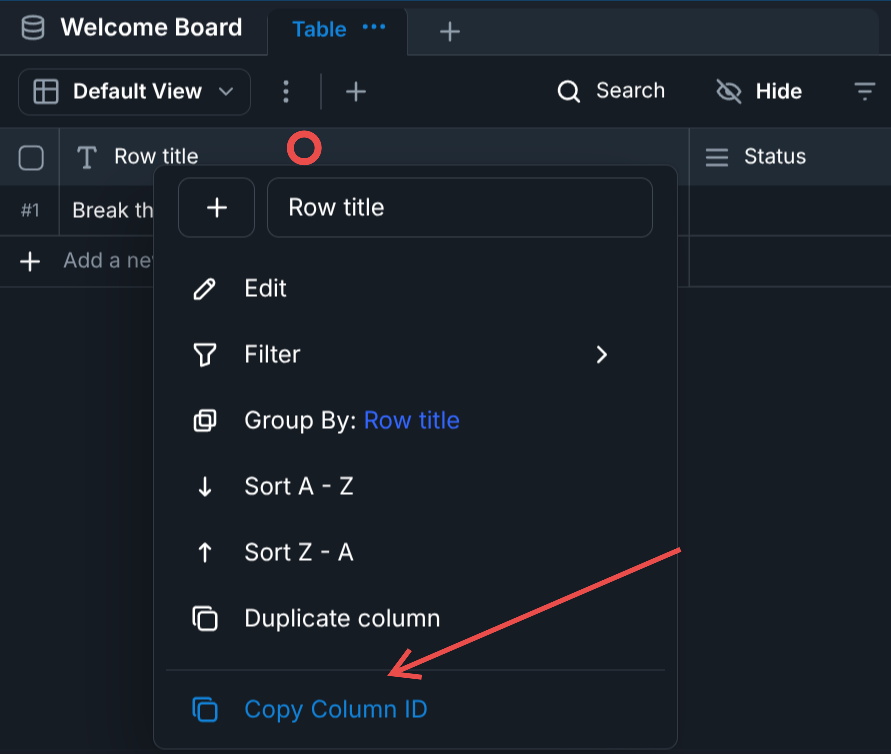
- Columns — right-click a column header.
- Drive files and folders — right-click a file or folder in the drive content table, a folder in the drive tree sidebar, or a breadcrumb item in the drive navigation.
- Column options — for
select,multiselect, andstatuscolumns, right-click an option inside the cell value dropdown to copy its option ID.
Pair Developer Mode with Getting Started: copy a boardId here, paste it into your first request, and you have a working call in seconds.
Summary
- Developer Mode adds "Copy ID" actions across the Copera interface.
- IDs are available for channels, boards, tables, columns, drive files and folders, and certain column options.
- Enable it at Workspace Settings → Account → Advanced → Developer Mode.
- It exists purely to speed up building integrations on the Public API.